
The Problem Space
What Copilot Studio’s SharePoint Knowledge Source Actually Does
When you connect a SharePoint site or document library to Copilot Studio as a knowledge source, the platform ingests the content of your documents: the text inside your Word files, PDFs, and pages. That is all it ingests.
The custom metadata columns you have carefully defined on your document library, columns like IT Audience, Document Status, Last Reviewed, Next Review Date, or a custom Document ID, are never retrieved. They are not indexed, not stored, and not passed to the agent. From the agent’s perspective, those columns do not exist.
This is not a bug. It is a product design constraint: Copilot Studio’s SharePoint knowledge type is built for document content retrieval, not structured data querying.
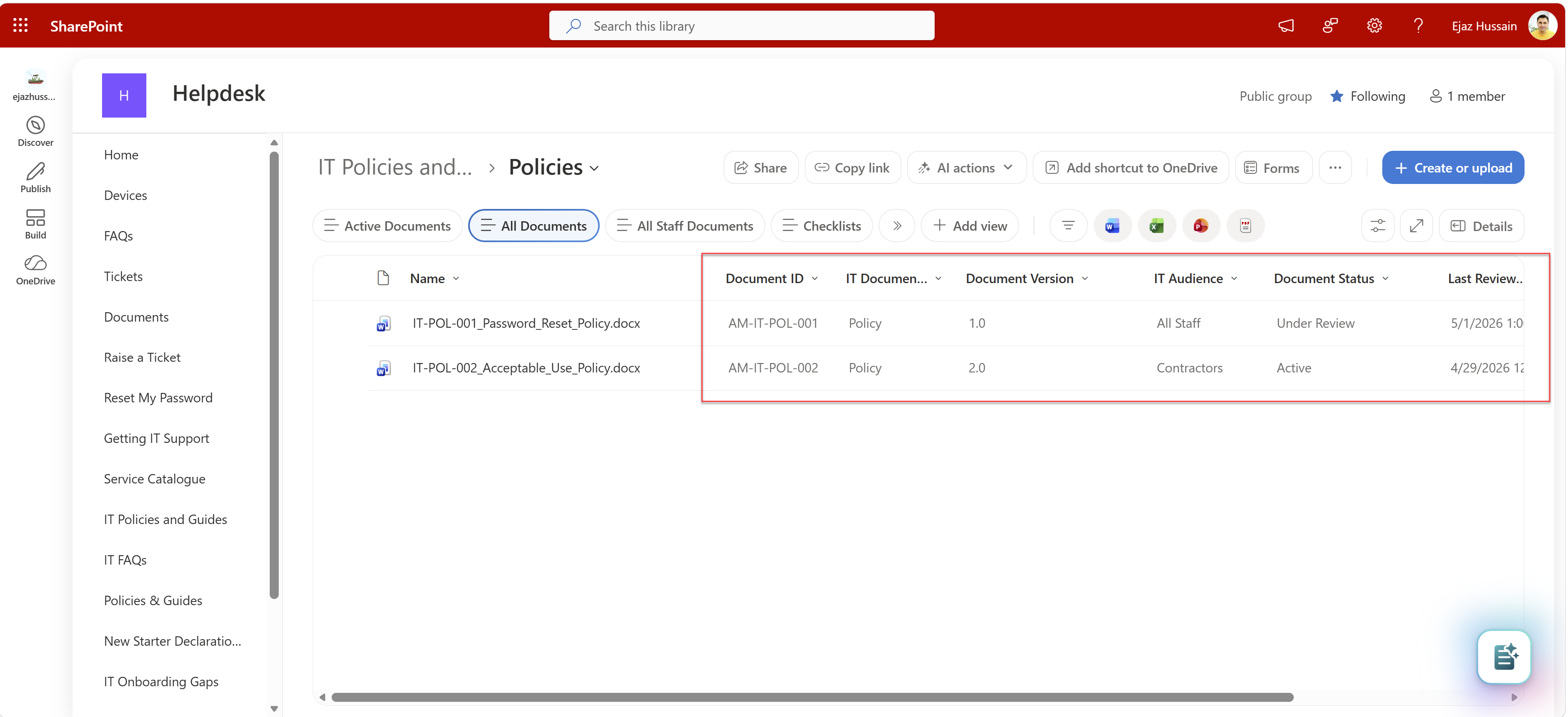
The custom columns visible here (Document ID, IT Audience, Document Status, Next Review Date) are invisible to a Copilot Studio agent using native SharePoint knowledge.
The Consequence
Take a concrete example from an IT Helpdesk document library. Every document carries these custom columns:
| Column Display Name | Internal Name | Type |
|---|---|---|
| Document ID | AM_DocumentID |
Text |
| Document Type | AM_DocType |
Choice |
| Document Version | AM_DocVersion |
Text |
| IT Audience | AM_Tax_1 |
Choice (All Staff, Contractors, IT Team) |
| Document Status | AM_Tax_2 |
Choice (Active, Under Review, Archived) |
| Last Reviewed | AM_LastReviewed |
Date |
| Next Review | AM_NextReview |
Date |
When a user asks “Show me Active policies for Contractors due before December 2026”, the agent has no Document Status field to filter on, no IT Audience to scope by, and no Next Review date to compare against. It performs a semantic search over document text and returns whatever content happens to be most relevant, which may or may not match the user’s intent. The agent itself flags this limitation in its own response.
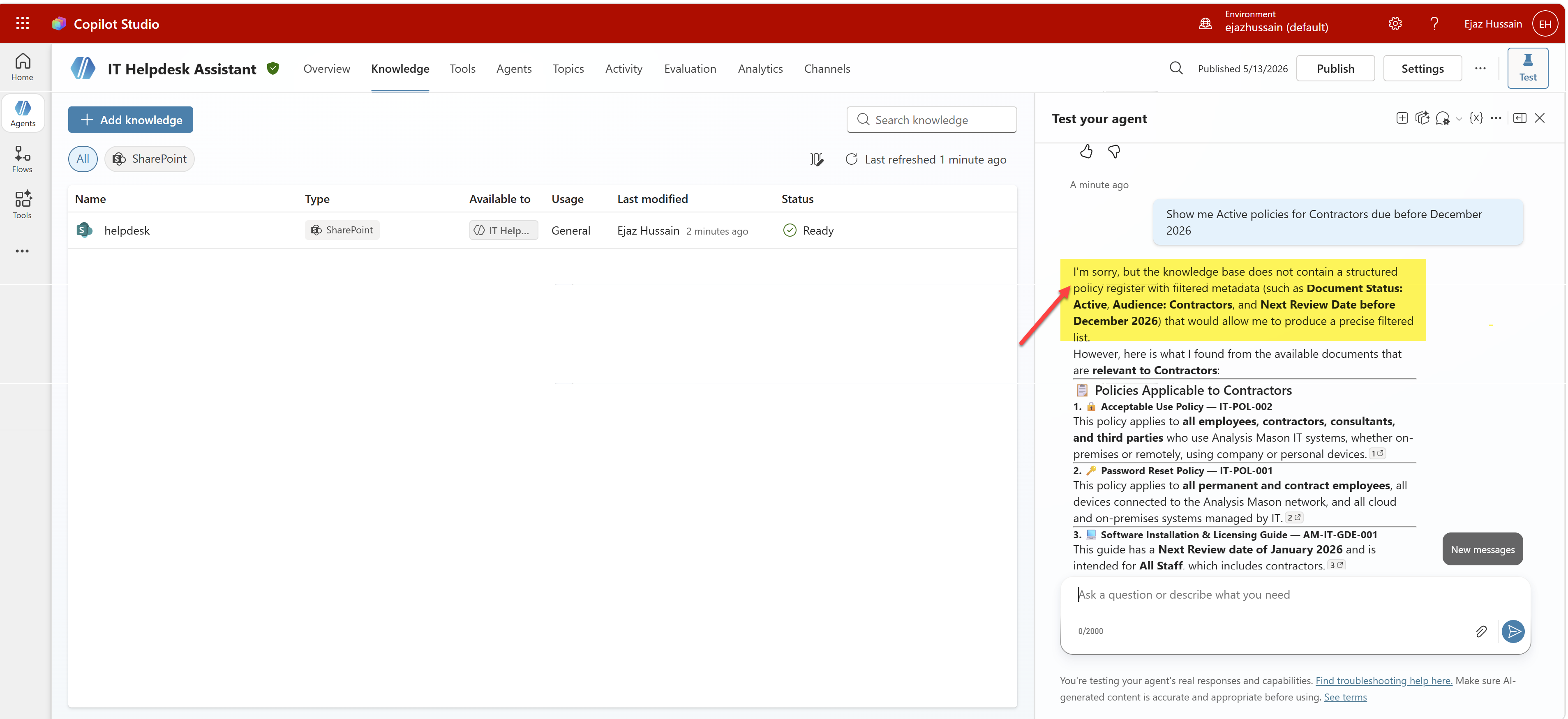
The agent acknowledges it cannot filter on review date metadata, because those columns were never part of its knowledge.
This gap is well documented by the community. Lee Ford’s article on SharePoint knowledge sources in Copilot Studio: the metadata problem is the clearest public write-up of exactly this issue.
The Solution: Azure AI Search as Knowledge Source
The fix is to replace the native SharePoint knowledge source with Azure AI Search, using a SharePoint indexer that is explicitly configured to pull your custom metadata columns into the index alongside the document content. Copilot Studio supports Azure AI Search as a knowledge type, and when the index is structured correctly, the agent can filter, scope, and reason over your custom columns.
How It Works: The Architecture
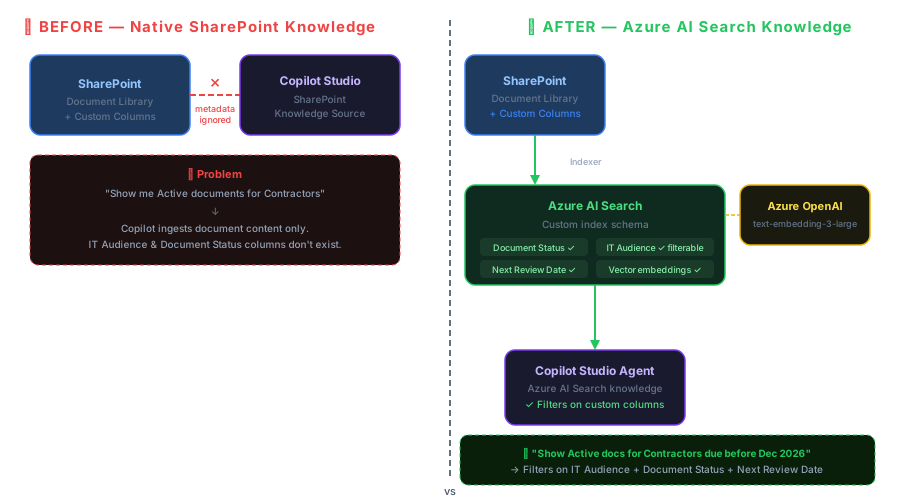
The key insight is that Azure AI Search treats your SharePoint library as a structured data source, not just a content store. Here is what each component does:
1. SharePoint Indexer
Azure AI Search has a native SharePoint Online indexer (currently in public preview, REST API only, not yet configurable via the Azure Portal). The indexer connects to your library via an App Registration and pulls documents through the Microsoft Graph API. Crucially, you can specify additionalColumns in the indexer query, which tells the indexer to extract your custom metadata columns alongside the document content. Without this, you are back to content-only indexing.
2. Custom Index Schema
Each custom metadata column becomes a first-class field in the Azure AI Search index. The fields are marked as filterable, searchable, and retrievable. This is what makes structured querying possible: the field exists in the index, has a value for every document, and can be used in filter expressions. A column marked filterable: true in the schema is what allows the agent to answer “show me only Active documents.”
3. Skillset: Chunking and Embeddings
Long documents are split into overlapping chunks (2,000 characters with 500-character overlap) so that semantic search works accurately at the passage level. Each chunk inherits the metadata column values of its parent document, meaning every chunk knows its Document Status, IT Audience, and Next Review Date. Azure OpenAI (text-embedding-3-large) generates vector embeddings for each chunk, enabling both semantic and keyword search.
4. Copilot Studio: Azure AI Search Knowledge Type
Instead of pointing the agent at the SharePoint site directly, you add an Azure AI Search knowledge source in Copilot Studio and connect it to the index. The agent now has access to every field in that index, including all your custom metadata columns, and can apply filters, return structured results, and surface accurate citations.
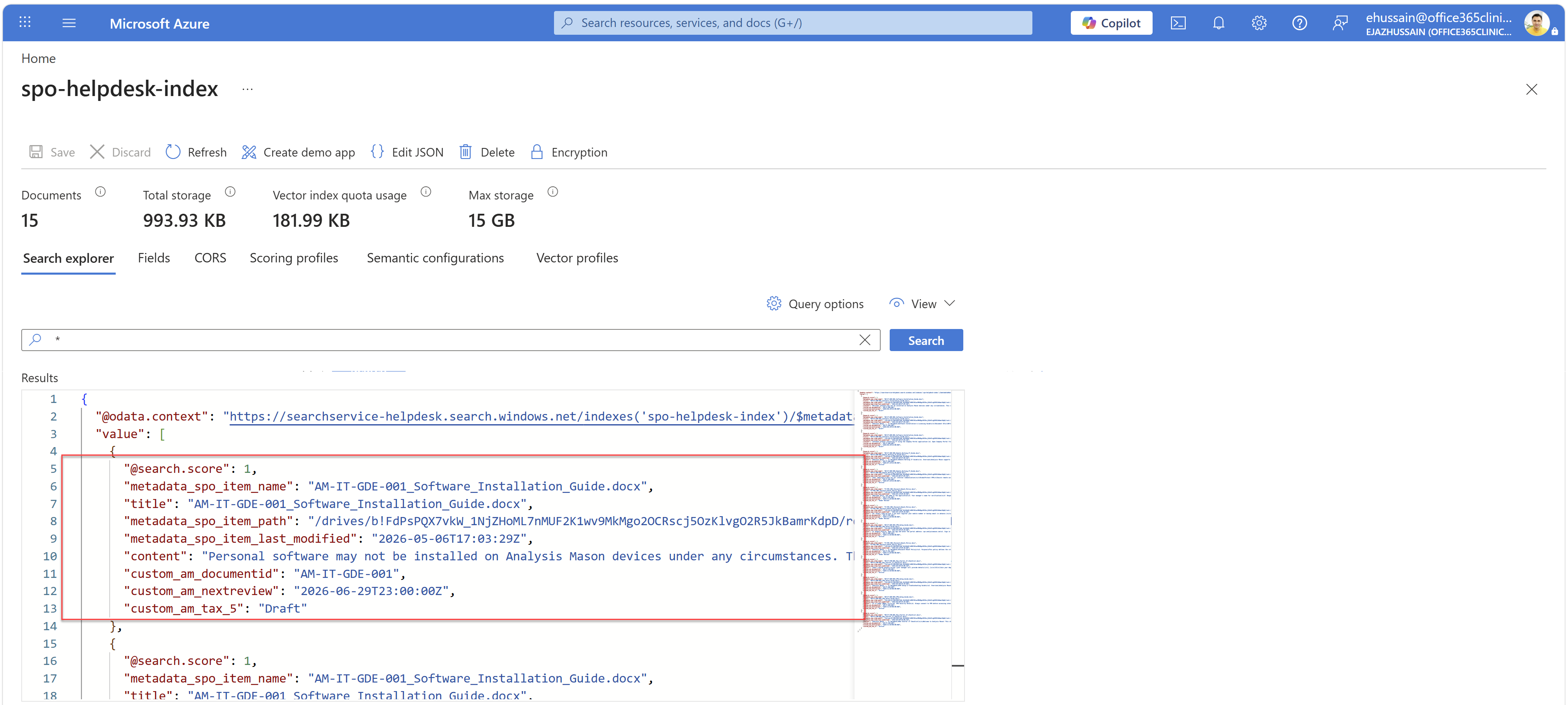
The index schema with custom columns mapped as filterable fields, which is what makes metadata-aware querying possible.
The same query that previously returned a caveated, incomplete list now returns accurate, filtered results:
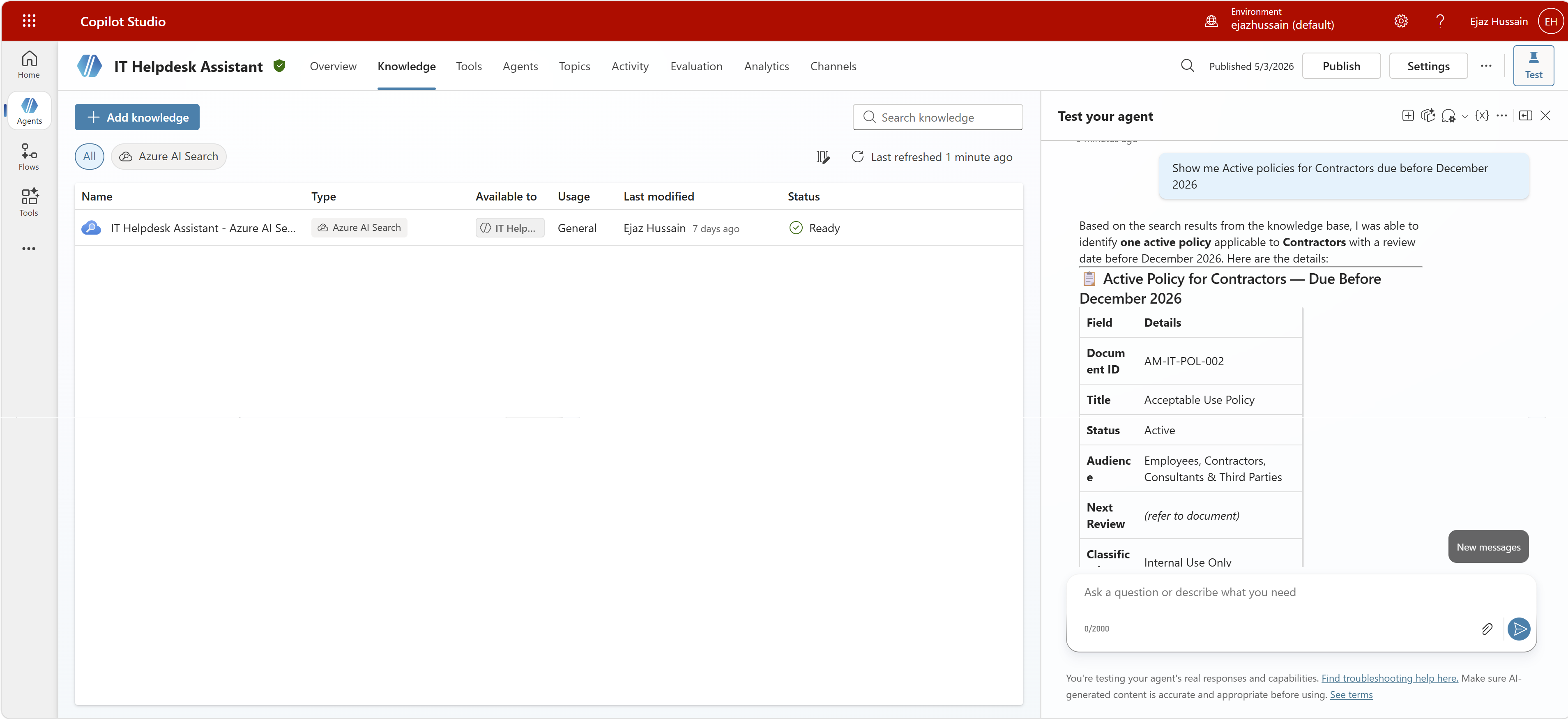
After switching to Azure AI Search as the knowledge source, the agent correctly filters on Document Status, IT Audience, and Next Review Date.
Where AI in SharePoint and Work IQ Fit
Microsoft is actively investing in making SharePoint content more deeply accessible to AI agents. Two initiatives are worth understanding in this context.
AI in SharePoint (Knowledge Agent)
Previously called Knowledge Agent, AI in SharePoint is currently in public preview. It brings AI capabilities to SharePoint with multi-step planning and execution across SharePoint site content, powered by an advanced reasoning model. It requires a Microsoft 365 Copilot licence and is enabled by a SharePoint Administrator via PowerShell (Set-SPOTenant -KnowledgeAgentScope AllSites). The public documentation does not currently describe custom metadata column filtering as a supported capability, but as this feature matures it represents Microsoft’s first-party investment in closing the gap between SharePoint’s rich structured data and what AI agents can reason over. It is worth monitoring closely.
Source: Get started with AI in SharePoint
Work IQ
Work IQ is described by Microsoft as “the intelligence layer that personalizes Microsoft 365 Copilot”, combining data, context, and skills/tools layers. Of particular relevance here is Work IQ MCP tools (currently preview), which enable agents to perform real-time actions within Microsoft 365 contexts (including SharePoint and OneDrive) via the Model Context Protocol. MCP-based integration represents a potential path toward more structured, real-time SharePoint data access, though the public documentation does not explicitly document custom metadata column filtering as a current capability.
Source: Work IQ overview
While Microsoft builds toward first-party solutions in this space, Azure AI Search gives you a production-ready path today.
Recommendation
Use Azure AI Search now. It is production-ready, fully supported as a Copilot Studio knowledge type, and gives you complete control over which columns are indexed and filterable. The pattern works today without waiting for platform updates.
When native SharePoint knowledge is sufficient. If your use case is purely document content retrieval (summarising a policy, answering questions about what a document says), the native SharePoint knowledge source works fine. The gap only matters when users need to filter, scope, or classify results by structured metadata. If your users are asking about documents, native SharePoint knowledge is adequate. If they are asking which documents match certain criteria, you need structured field support.
Monitor Microsoft’s roadmap. Microsoft 365 Roadmap item 516044 is relevant to watch alongside the AI in SharePoint and Work IQ developments above. The direction of travel is clear: Microsoft is investing in richer SharePoint-to-agent integration, but the custom metadata column problem is not yet solved at the first-party level.
References
- Lee Ford, SharePoint knowledge sources in Copilot Studio: the metadata problem, https://www.lee-ford.co.uk/posts/sharepoint-knowledge-sources-in-copilot-studio-the-metadata-problem/
- Microsoft 365 Roadmap, Item 516044, https://www.microsoft.com/en-US/microsoft-365/roadmap?filters=&searchterms=516044
- Microsoft Learn, Get started with AI in SharePoint (preview), https://learn.microsoft.com/en-us/sharepoint/ai-in-sharepoint-get-started
- Microsoft Learn, Work IQ overview, https://learn.microsoft.com/en-us/microsoft-365/copilot/extensibility/work-iq